
Features
This page covers the core features inside MonstarX. If you haven't built your first app yet, start with Getting Started.
The Workbench
After your app is built, the Workbench opens automatically. It's your project workspace, and it has three tabs:
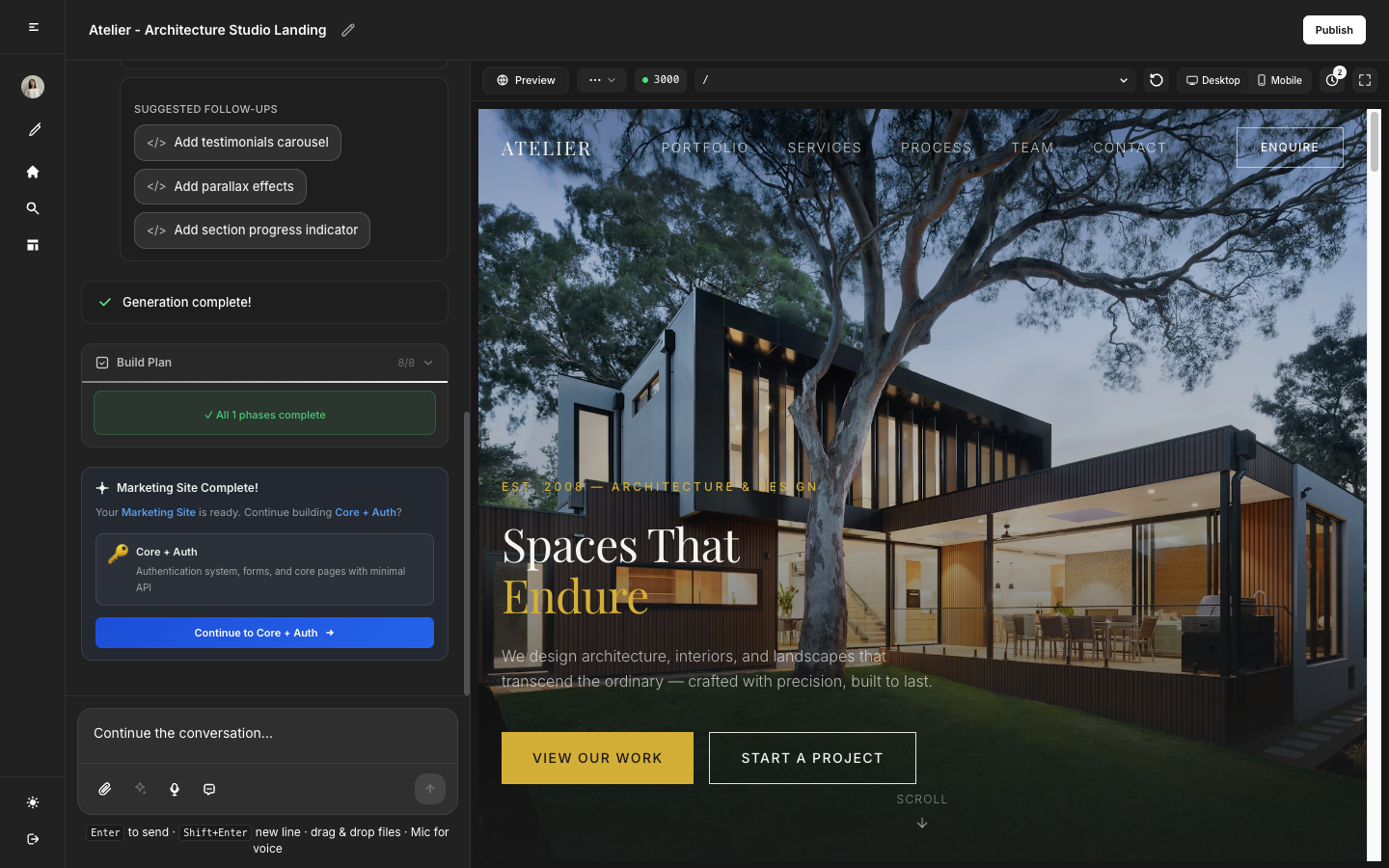
Preview Tab
The Preview tab shows a live, interactive version of your app. You can click buttons, fill in forms, and navigate between pages, exactly as a real user would.
Use Preview to:
- Verify the app matches your intent right after the initial build
- Confirm a change worked after sending a follow-up message
- Do a final check before publishing
Keep in mind: if a required service isn't connected, some actions (like saving data or logging in) will fail in Preview even if the page loads. Head to the Connectors tab to fix this.
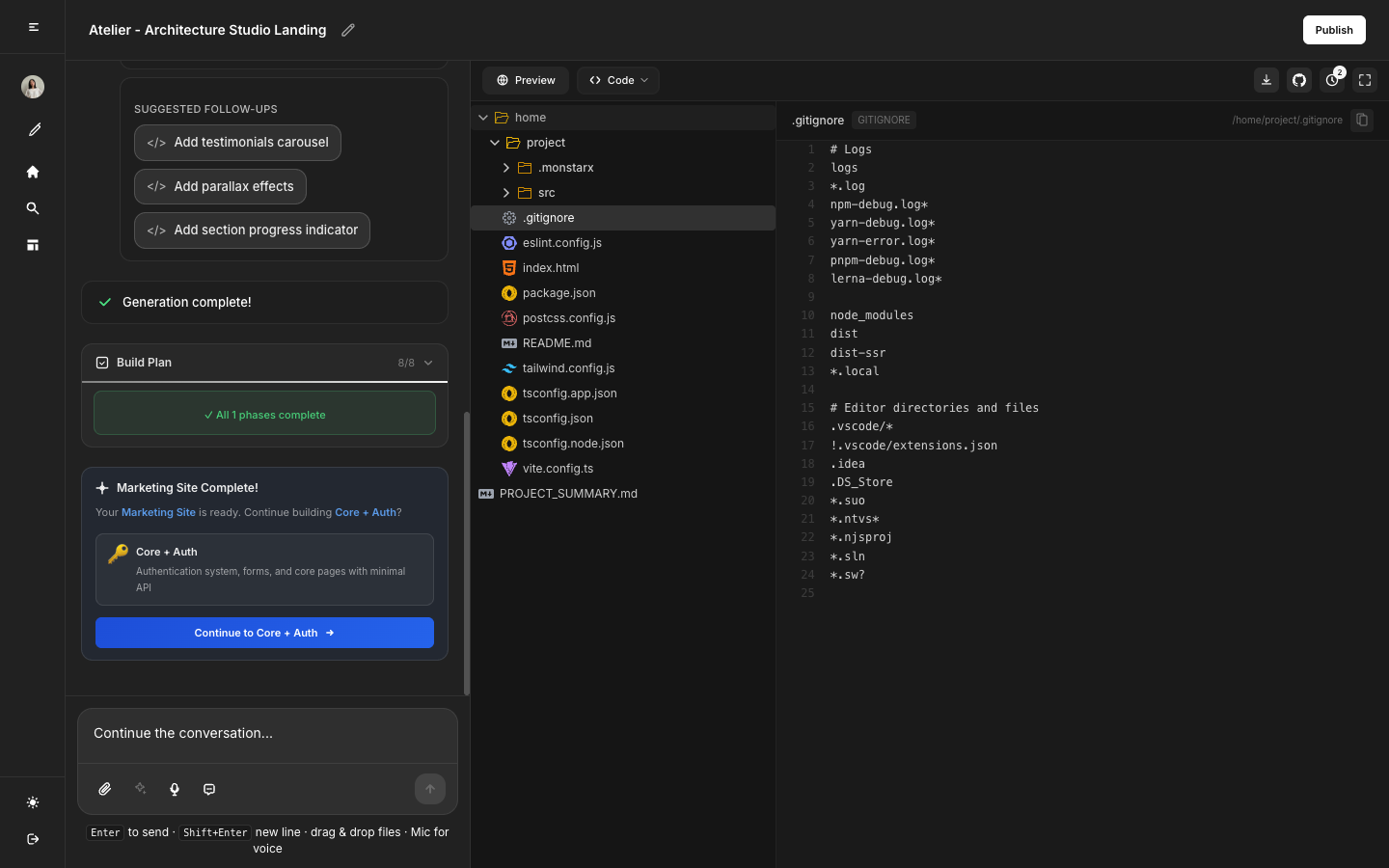
Code Tab
The Code tab gives you a browsable view of your app's source files.
Use it to:
- Verify what MonstarX built
- Copy a specific piece of logic into another project
- Understand the structure before requesting a change
Note: Direct editing from within the Code tab is not available. To make manual edits, push your code to GitHub first and edit it there.
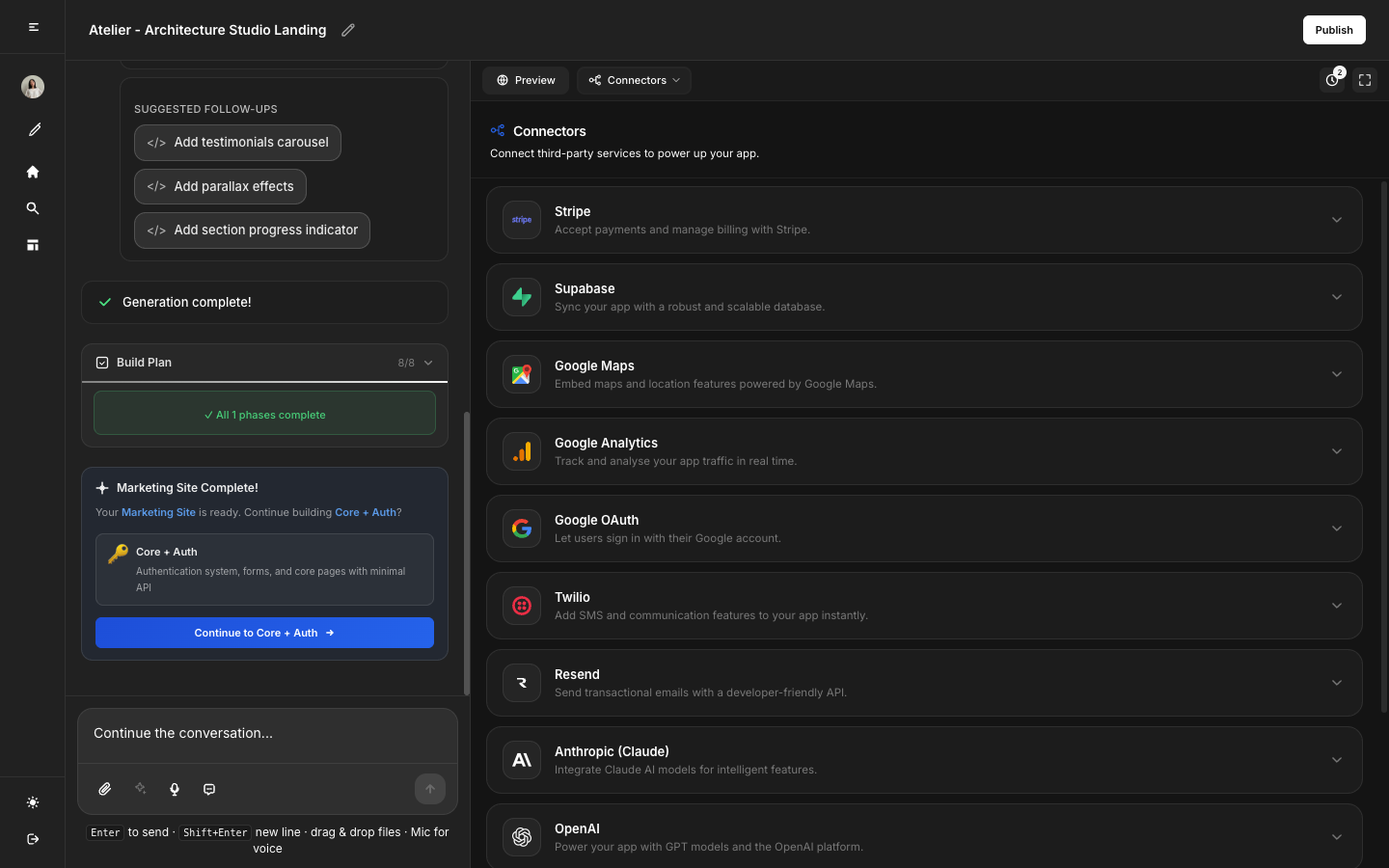
Connectors Tab
The Connectors tab lists all external services available for your project, along with their current status.
- Connected — Active and working
- Required — Must be connected, your app won't work without it
- Optional — Not required, your app works without it
- Not connected — Available but not yet set up
For step-by-step setup instructions for each service, see Integrations.
Discuss Mode
Discuss mode lets you have a conversation with MonstarX without triggering a rebuild of your app.
Use it to:
- Ask questions before making a change
- Check whether a planned change is small or large
- Understand why something was built a certain way
- Think through an approach before committing to it
How to activate:
- Find the Discuss toggle near the message input. The tooltip reads: "Ask questions without building or redeploying preview."
- Click to enable it, the active state shows "Discuss mode on."
- Type your question and send it.
- MonstarX responds without touching your app.
- When you're ready to make the actual change, turn the toggle off and send your prompt normally.
Sending a regular message can trigger a full rebuild. Discuss mode lets you confirm the approach first, saving time and credits.
The Plan-First Flow
Every project in MonstarX follows this sequence, and no step can be skipped:
The plan is your only checkpoint before building begins. If something's off, correct it before approving, it's much faster than fixing a built app.
Project Scope Tiers
When you start a new project, you'll choose one of four scopes:
- Marketing site — Static pages, no user accounts or database
- Core + Auth — Forms, light backend, and login
- Full Application — User accounts, database, and service connections
- Full + Admin — Full Application plus an admin panel
Choose Marketing site for content-only pages. Choose Full Application if your idea involves storing data, handling payments, or connecting services. Choose Full + Admin if you need to manage users or content after launch.
Changing scope mid-project requires starting a new plan.
File Attachments
You can attach files to your initial message to give MonstarX more context before it writes the plan.
Supported formats: PDF, Word (.docx), plain text, Markdown, and images (PNG, JPG)
Great for:
- A product brief or spec to reduce back-and-forth questions
- A wireframe or screenshot to communicate visual intent
- An existing data structure you want MonstarX to work with
How to attach:
- Click the attachment icon in the message input.
- Select your file.
- Add your message and press Send.
Publish and Unpublish
To publish: Click Publish, this creates a live, public URL for your app that's ready to share immediately.
To unpublish: Click Unpublish, your app goes offline and the URL stops working. You can republish at any time.
Custom domain: Not available in the current version of MonstarX.
GitHub Export
GitHub export sends a copy of your app's code to a repository of your choice.
Steps:
- Open the Connectors tab and connect your GitHub account.
- Click the GitHub push option.
- Give the repository a name and confirm.
Use this when you want to continue development outside MonstarX, deploy to your own server, or keep a permanent backup of your code.
Language Options
The MonstarX interface is available in English, Japanese, and Arabic. Switch languages from the settings panel in your account.
Feature Availability by Scope
| Feature | Marketing Site | Core + Auth | Full Application | Full + Admin |
|---|---|---|---|---|
| Preview | Yes | Yes | Yes | Yes |
| Code tab | Yes | Yes | Yes | Yes |
| Connectors | Limited | Partial | Full | Full |
| Supabase | No | Partial | Yes | Yes |
| Login / Auth | No | Yes | Yes | Yes |
| Admin panel | No | No | No | Yes |
| Publish / Unpublish | Yes | Yes | Yes | Yes |
| GitHub export | Yes | Yes | Yes | Yes |
This table reflects observed behavior. Verify against the live product for current accuracy.