
Build real apps
with plain language.
Describe what you want. MonstarX plans it, builds it, and publishes it — no code required.
What is MonstarX?
MonstarX lets you build real, full-stack web applications using plain language. You describe what you want, MonstarX creates a step-by-step plan for your review, and once you approve it, your app is built and ready to publish.
Every project follows the same flow:
Nothing gets built until you approve the plan. That gives you full control before any work begins.
Who is MonstarX for?
MonstarX is built for anyone with an idea who wants to bring it to life fast:
How to Use MonstarX
Step 1: Start a project
Head over to MonstarX and sign in. No credit card required.
You'll land on a chat-style screen, this is where every project begins.
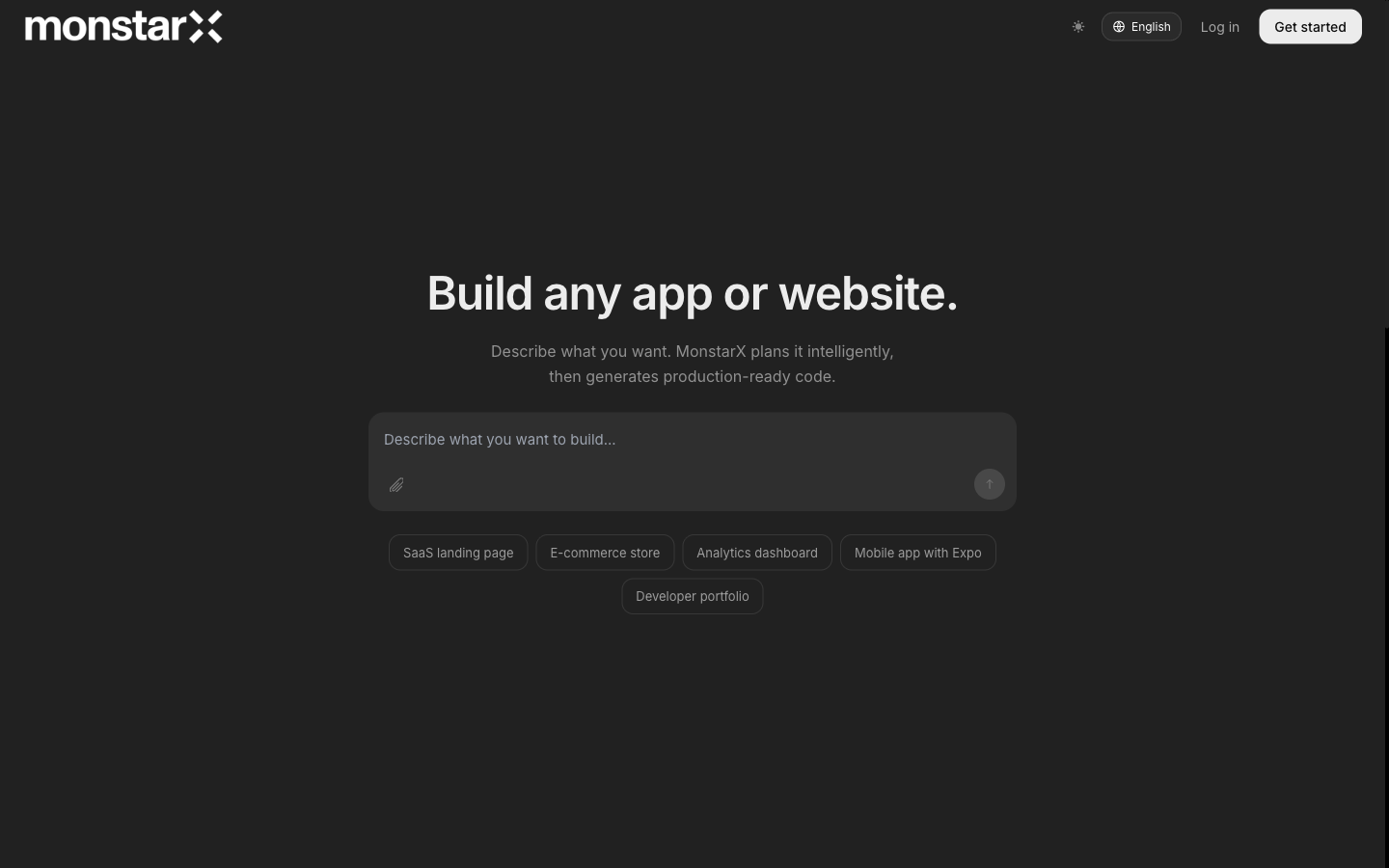
Tip: If sign-in isn't working, try a different browser or clear your cookies.
Step 2: Describe what you want to build
Type your idea into the message field. The more specific you are, the better your plan will be.
- Good: "Build a habit tracker where I can log daily habits, mark them complete, and see a 7-day streak."
- Too vague: "Build an app."
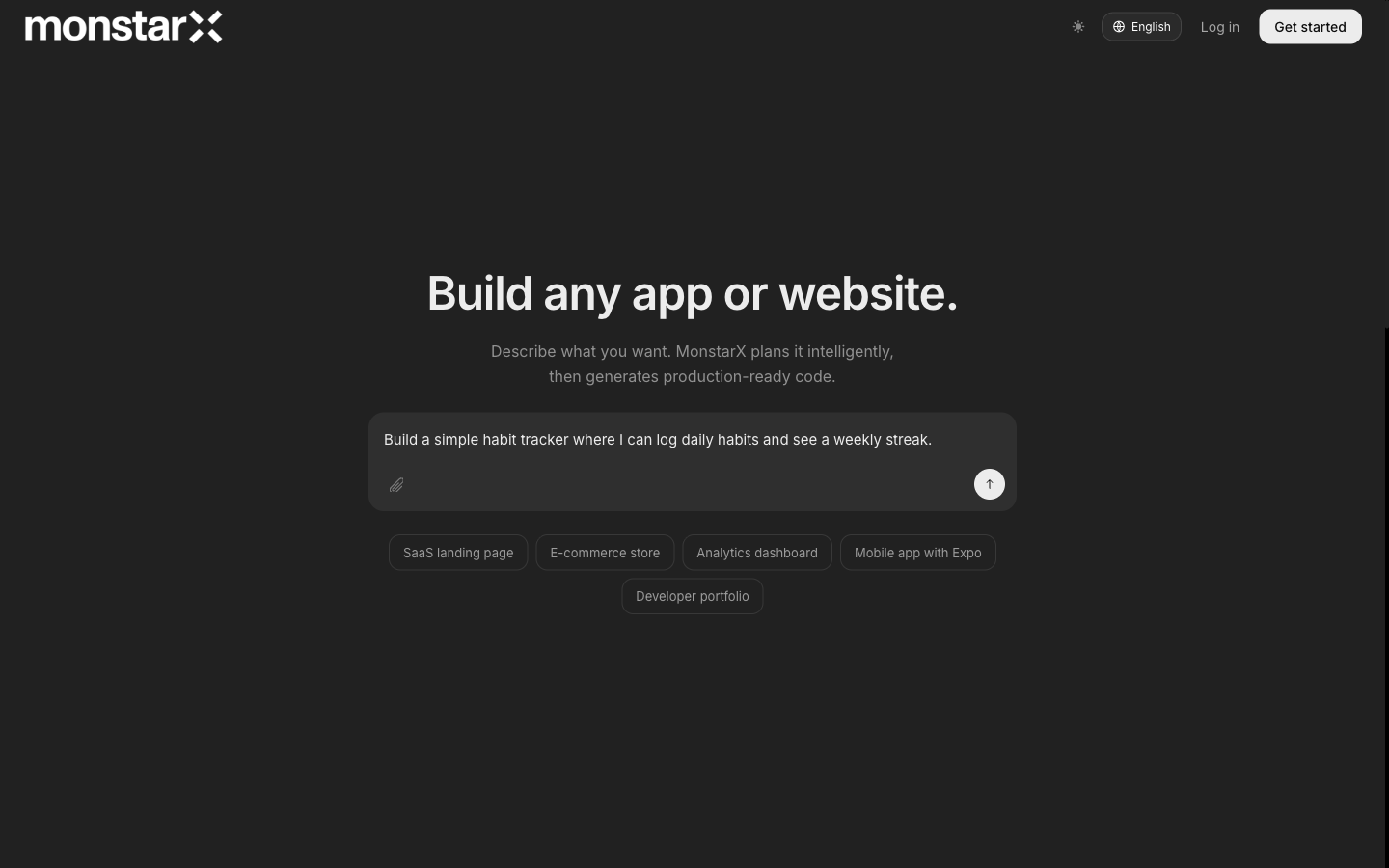
You can also attach a file, a brief, wireframe, or spec, to give MonstarX extra context. Supported formats: PDF, Word, plain text, Markdown, and images.
When prompted, choose a scope for your project:
- Marketing site — Static pages, no user accounts or database
- Core + Auth — Login and simple forms
- Full Application — User accounts, database, and service connections
- Full + Admin — Full Application plus an admin panel
Press Send when you're ready.
Step 3: Answer MonstarX's questions
MonstarX may ask a few questions to sharpen the plan. Answer them as clearly as you can. If you're unsure about something, just say so, MonstarX will make a sensible choice.
The more specific your answers, the fewer revisions you'll need later.
Step 4: Review and approve the plan
Before anything is built, MonstarX shows you a detailed plan. Read it carefully and ask yourself:
- Does this match what I described?
- Are all the features I need listed?
- Does it include any services I'll need to set up?
If something looks off, type a correction and MonstarX will revise the plan. You can go back and forth as many times as you need. When you're happy with it, click Approve.
MonstarX won't build anything until you approve the plan.
If the plan never appears: Scroll down in the chat. If it's still missing, reload the page, your project is usually saved automatically.
Step 5: Inspect your app
When the build is complete, the Workbench opens. It has three tabs:
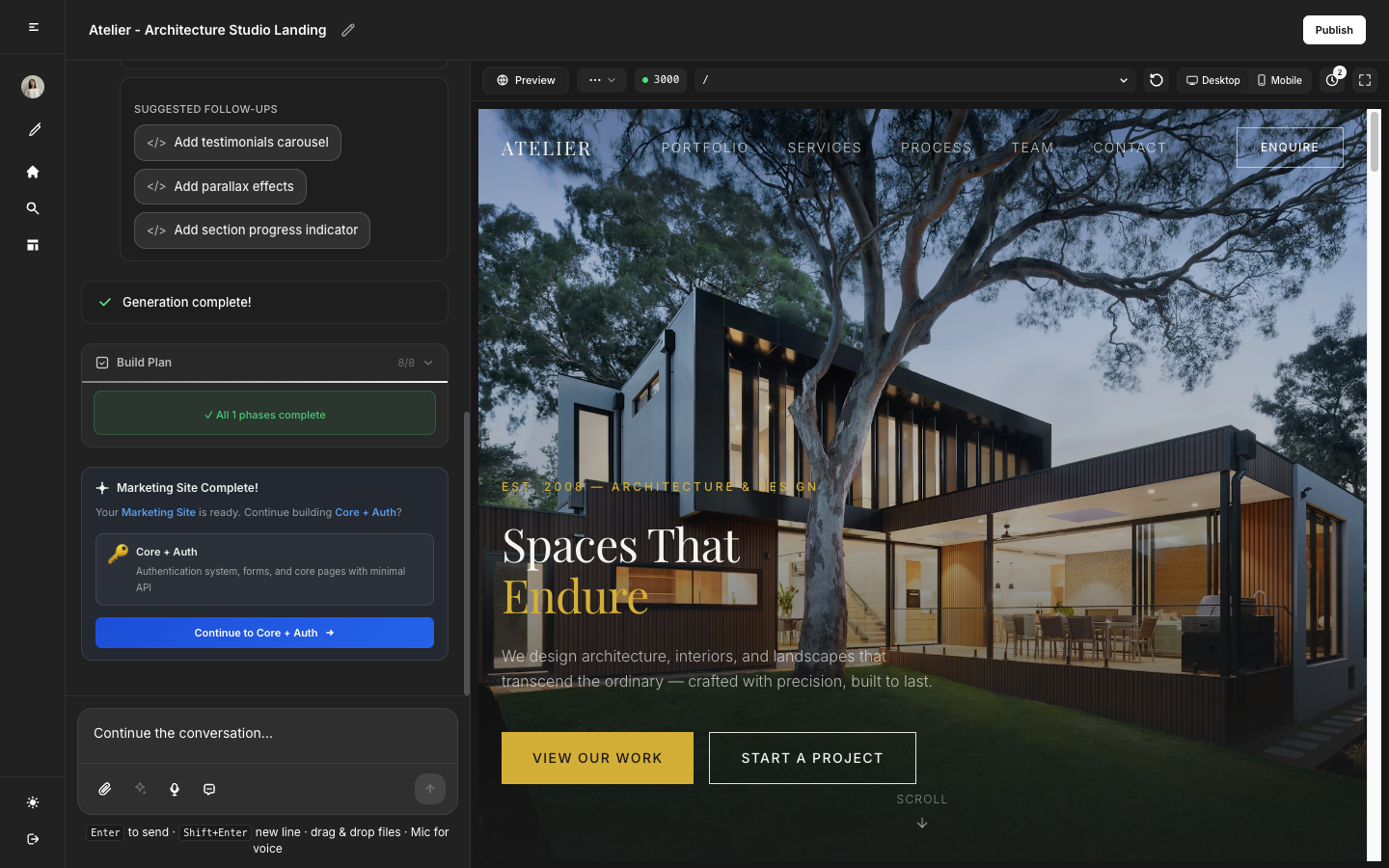
Click Preview and test your app. Try the buttons, forms, and navigation as a real user would.
If Preview is blank: Open the Connectors tab, a required service may not be connected yet. See Integrations for setup steps.
Step 6: Connect services your app needs
Some apps need external services to work, like a database for storing data or an email service for sending confirmations.
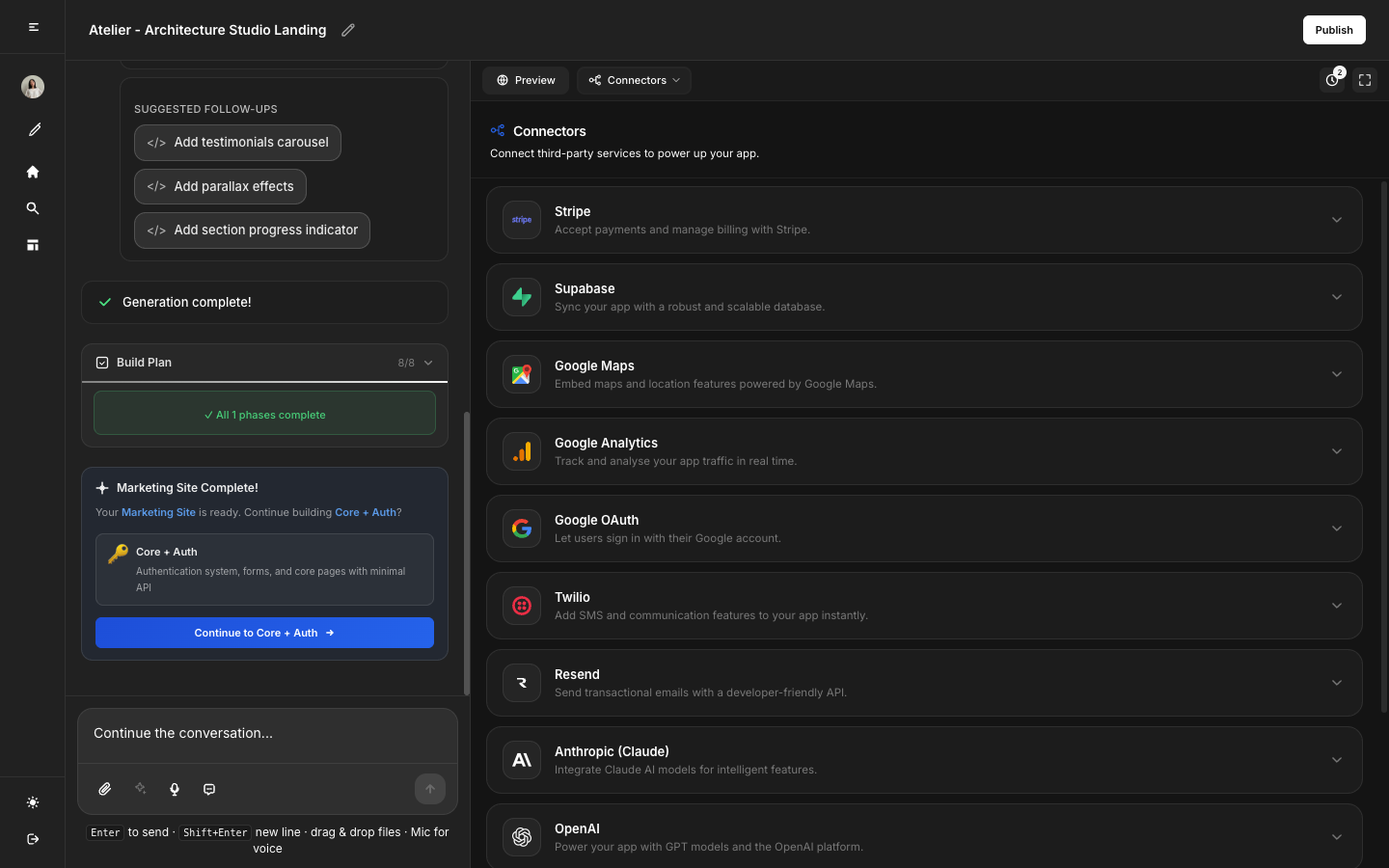
The Connectors tab shows you exactly what's needed:
- Required — Your app won't work without this. Connect it now.
- Optional — Your app works without it. Connect it when you're ready.
- Connected — Active and working.
Click any service to connect it. MonstarX walks you through each step. Free alternatives are available for many services, see Integrations for the full list.
Step 7: Make changes
Once your app is built, you can keep refining it by sending new messages.
Before making a big change, use Discuss mode, a toggle near the message input. It lets you have a conversation with MonstarX without triggering a rebuild, so you can think through the approach first.
- Ready to build: "Add a logout button to the top right of the dashboard."
- Think it through first: "I want to redesign the entire dashboard.", turn on Discuss mode and talk it through before committing.
Step 8: Publish
When your app is ready to share, click Publish. MonstarX generates a live, public URL you can share with anyone.
If Publish is greyed out: Check that all required services are connected in the Connectors tab.
To take your app offline: Click Unpublish at any time. You can republish whenever you're ready.
Step 9: Push to GitHub (optional)
Want a copy of your code in GitHub? Here's how:
- Open the Connectors tab and connect your GitHub account.
- Click Push to GitHub and give your repository a name.
- Your code is exported to a new GitHub repo.
Frequently Asked Questions
Do I need to know how to code?
Not at all. MonstarX is built for non-technical users, you describe what you want in plain language, and MonstarX handles the rest.
What if I don't like the plan?
Type your correction and MonstarX will revise it. You can revise as many times as you need before approving.
Can I make changes after the app is built?
Yes, send follow-up messages at any time. Use Discuss mode to think through bigger changes before committing to a rebuild.
What is Discuss mode?
A way to talk with MonstarX without triggering a rebuild. Use it before making significant changes to your app.
Does publishing use credits?
Credits are used when MonstarX builds or rebuilds your app. Publishing itself does not consume credits.
Can I unpublish my app?
Yes. Click Unpublish at any time. Your app goes offline immediately, and you can republish whenever you're ready.
Is there a free plan?
Yes. See Plans & Pricing for details.
How do I connect a database?
MonstarX will let you know when your app needs a database. See Integrations for step-by-step setup.
What kind of apps can I build with MonstarX?
Landing pages, internal tools, dashboards, SaaS MVPs, habit trackers, booking apps — if it's a web app, you can describe and build it.
How long does it take to build an app?
Most apps are ready in minutes. Simple marketing sites are faster; full-stack apps with auth and a database take a little longer depending on scope.
Can I use my own design or branding?
Yes. Once built, describe your design preferences (colors, fonts, layout) as a follow-up message and MonstarX will apply them.
What happens to my project if I cancel my account?
Your projects remain accessible until the end of your billing cycle. After that, export your code to GitHub first to keep a permanent copy.
Is my app publicly visible?
Only if you publish it. Unpublished apps are private and only visible in your Preview tab.
Can I build more than one app?
Yes. Each new chat starts a new project. You can have multiple projects running at the same time.
What happens if my build fails?
Turn on Discuss mode and describe what went wrong. MonstarX can help diagnose the issue before attempting a rebuild, which avoids spending credits on a repeat failure.
Can I share my app before publishing?
The Preview tab is private and only visible to you. To share your app, click Publish to get a live public URL.
Does MonstarX work on mobile?
The builder interface is designed for desktop use. Apps you publish work on any device, including mobile.
Can I rename or delete a project?
Project management options are available from your dashboard. Open your project list to rename, archive, or delete projects.
What file formats can I attach?
You can attach PDFs, Word documents, plain text files, Markdown files, and images to give MonstarX extra context when planning your app.